
What the Blooket dashboard is (and where it lives)
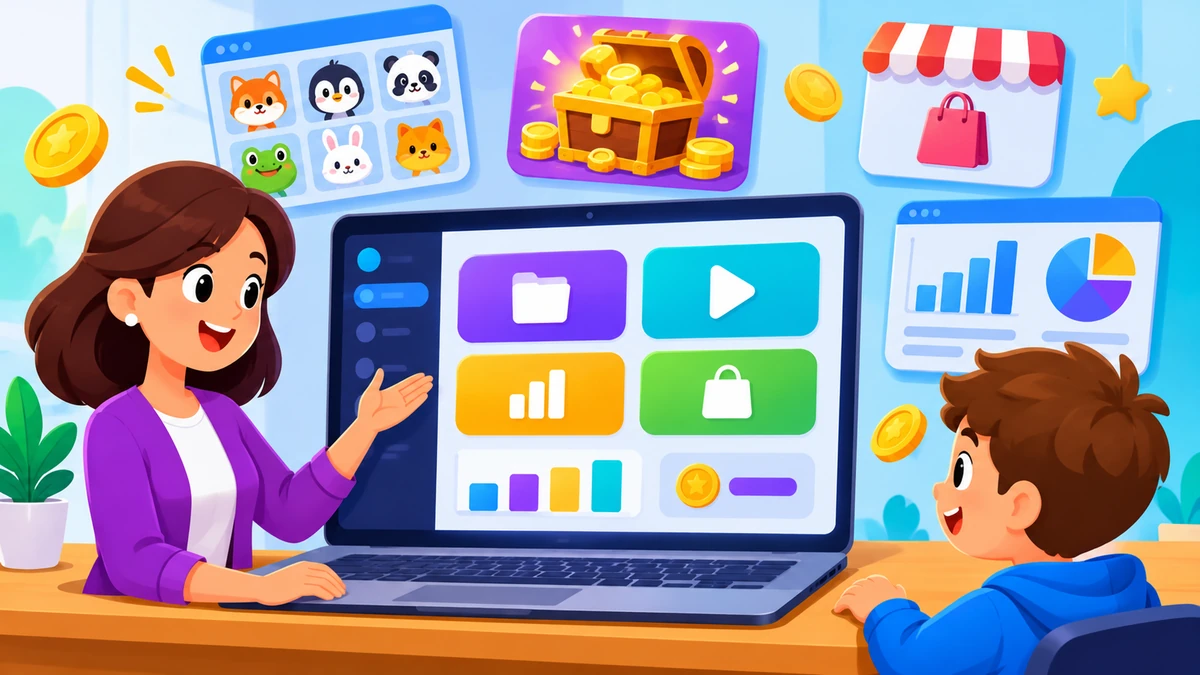
Blooket is a family of properties: blooket.com is the front door, play.blooket.com joins games, id.blooket.com handles sign-in — and the officially supported dashboard.blooket.com is the app itself. Everything you keep between sessions lives here: question sets, favorites from Discover, homework assignments, game history, your token balance, and your Blook collection.
You reach it by logging in — there is no guest dashboard, because guests have nothing to store.
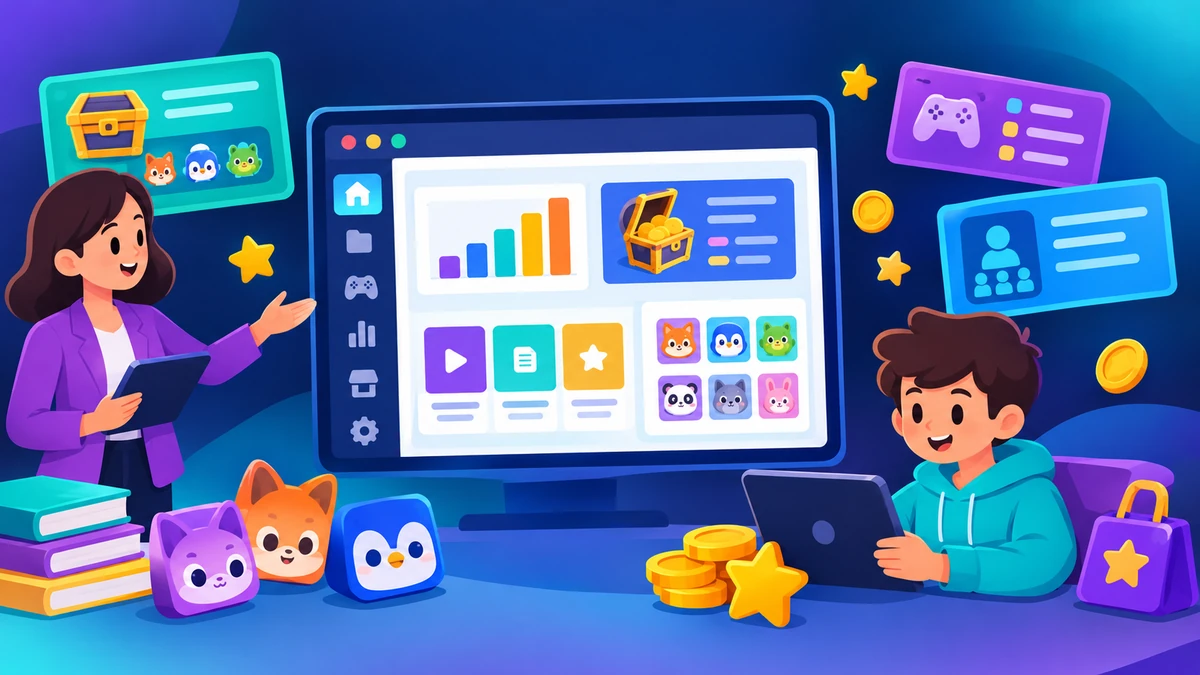
The teacher dashboard — section by section
- My Sets — your question-set library. Build from scratch, import from Quizlet, or duplicate public sets. This is where hosting starts: open a set, press Host.
- Discover — Blooket's public library. Search by topic, preview sets, favorite them, or copy them into your library for editing.
- Host / Live — launch a live game or assign homework from any set you own. The lobby settings (cap, names, late joining) appear here — see our hosting guide for the full flow.
- Reports / History — post-game data: per-student accuracy and per-question performance. The fastest way to find tomorrow's reteach topics.
- Market (lower in the sidebar for teachers) — the Blook shop. Teachers can collect Blooks too, and many do.
- Plus / Upgrade — Blooket Plus subscription features. Optional; nothing required to run a class lives behind it.
The student dashboard — section by section
- Blooks — the collection: every Blook the student owns, organized by rarity. The shelf flexes.
- Market — front and center for students: buy Blook packs with tokens, check the Weekly Shop for banners and titles, and catch the seasonal shop during events.
- Tokens & XP — earnings from games, capped at 500 tokens + 300 XP per day with a Daily Wheel spin on top.
- Solo play — open a set (owned or favorited) and play solo-compatible modes like Tower of Doom or Crazy Kingdom.
- Homework — assigned games with deadlines appear here until finished.
The split is deliberate: students see play and collection, teachers see creation and data. Neither side clutters the other.
Assigning homework from the dashboard
Homework is the dashboard's async superpower. The flow: open a set, choose Assign Homework instead of Host, set a deadline and question count, and share the join link or code. Students see the assignment in their dashboard until they finish it, and results flow into the same reports as live games.
Two habits make homework stick: keep the question count small (10–15 keeps completion rates high), and give the deadline a full day plus — school nights are unpredictable.
| Dashboard area | Teacher sees | Student sees |
|---|---|---|
| Create sets | Full set builder, imports, editing | Not available |
| Host & homework | Live hosting, homework assignment, deadlines | Play assigned games only |
| Discover library | Yes — plus reports on shared sets | Yes — browse and favorite sets |
| Stats & reports | Per-student and per-question analytics | Personal stats only |
| Market | Lower in the navigation | Front and center |
| Blooks collection | Yes, but usually untouched | The main draw |
Game history and reports, explained
Every hosted game leaves a report. Per-student view: accuracy by each player — useful for spotting who guessed their way through. Per-question view: the class-wide miss rate on each question — the single fastest way to find tomorrow's reteach topic. Reports only exist for games played while logged in; guest games vanish.
Tokens, Blooks, and the Market inside the dashboard
The in-dashboard economy runs on tokens earned by answering questions. The daily structure: play games, earn up to 500 tokens and 300 XP, spin the Daily Wheel for bonus tokens, then spend in the Market — Blook Packs on top, Weekly Shop items below, and a seasonal shop during events. Selling duplicate Blooks recycles value back into your balance. Our Market guide covers every pack, shop, and a spending strategy.
Dashboard settings worth checking once
- Email + password — keep them current; password resets go through the registered email.
- Linked accounts — Google and Clever connections for school sign-in.
- Display name — what appears in lobbies when you host.
Dashboard troubleshooting
- Won't load / blank screen: log out and back in at id.blooket.com; stale sessions cause most blank loads.
- Blocked at school: filters sometimes flag dashboard.blooket.com even when play works — ask your IT team to whitelist it.
- Slow or broken UI: clear the browser cache or try a private window; old cached assets are a classic cause.
- Joined a game but it's not in history: guest joins don't save — only games played while logged in appear in reports and history.
Frequently asked questions
What is the Blooket dashboard?
The dashboard at dashboard.blooket.com is your account home — where sets are built, games are hosted, homework is assigned, stats are tracked, and the Market lives. Teachers and students see different versions of it.
How do I get to the Blooket dashboard?
Log in at id.blooket.com first — signing in lands you on the dashboard automatically. You can also reach it by clicking your username or profile icon anywhere on blooket.com properties.
What's the difference between the teacher and student dashboard?
Teachers get creation and hosting tools: set builders, host buttons, homework assignment, and reports. Students get the player side: their Blook collection, token balance, solo play, and the Market. Each side only sees what it needs.
Where are tokens in the Blooket dashboard?
Your token balance sits in the Market and on your profile. Tokens come from playing games (up to 500 per day, plus the Daily Wheel spin) and are spent on Blook packs and shop items.
Why is my Blooket dashboard not loading?
The usual causes are a stale login session (log out and back in at id.blooket.com), a school filter blocking dashboard.blooket.com, or browser cache issues. Try a private window or another browser to isolate which one it is.
Related guides: login & signup fixes · creating question sets · homework assignments · hosting from the dashboard · what to play next