Where Blooket login lives
All sign-in happens at id.blooket.com — Blooket's identity service. The marketing site and the join screen both link to it, and every method below lands there:
| Method | Who uses it | Notes |
|---|---|---|
| Email + password | Anyone | Classic; supports password reset |
| Most students & teachers | Must match the account used at signup | |
| Clever | School-managed accounts | Roster sync through the school's system |
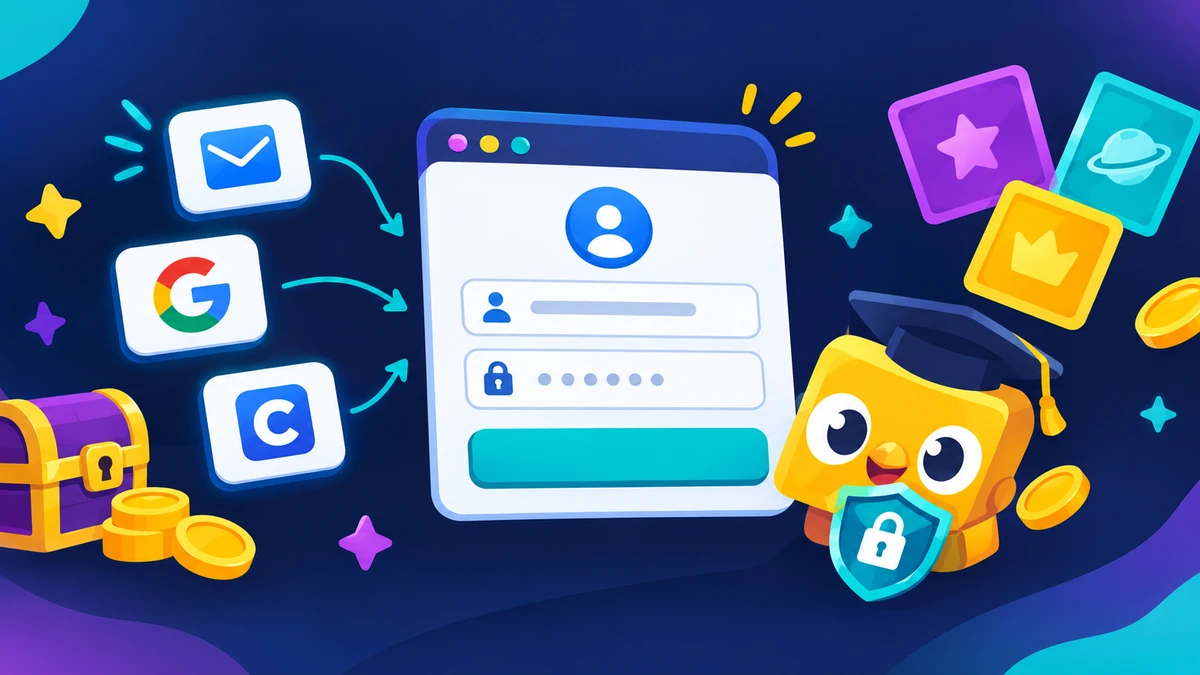
One rule protects your whole account: only ever enter Blooket credentials at id.blooket.com. No tool, generator, or “free coins” site needs your login — those are phishing, every time. Our bot guide covers that scam pattern in detail.
Signing up: student vs teacher (choose correctly)
The signup role decides your entire dashboard, so pick right the first time:
- Students get the player experience: Blook collection, Market access, solo play, homework list. No hosting tools — which is also what keeps student accounts out of teacher data.
- Teachers get set builders, host buttons, homework assignment, and reports. Signing up as a student by mistake hides all of it — the fix is creating a new teacher account with the correct role (Blooket support can help merge cases).
Age matters too: Blooket is designed for school use, and youngest students are expected to play with parental/school oversight — parents can review the platform's privacy terms at sign-up.
Logging in step by step
- Open id.blooket.com/login (or tap Log In anywhere on blooket.com).
- Pick your method: email + password, Google, or Clever.
- If you used Google at signup, choose the same Google account now — a different one creates a new, empty account.
- You'll land on your dashboard — tokens, Blooks, and sets ready. Joining a game now saves everything you earn.
Login not working? Every fix
“Wrong password”
- Use “Forgot password” on the login page — the reset email arrives within minutes.
- If you signed up with Google or Clever, you don't have a Blooket password — sign in through that provider.
Google sign-in opens an empty account
- You chose a different Google account than the original signup. Sign out of Google (or use a private window) and pick the original one.
Clever login fails
- Clever access depends on your school's roster — confirm your school portal shows Blooket, then retry from the school dashboard.
Page won't load at school
- Network filters occasionally block id.blooket.com while allowing the rest — IT whitelisting is the only real fix.
Logged out constantly
- Browser settings that clear cookies on exit cause this — allow cookies for blooket.com domains, or stay logged in via the same browser profile.
After you log in: your first five minutes
Logging in lands you on the dashboard. From there, three moves set up everything: favorite a set from Discover so you always have something to play, join your first live game with a Game ID at play.blooket.com, and peek at the Market to see what your first tokens can buy. That's the whole loop — play, earn, collect.
Shared devices and logout habits
Classroom computers are shared by definition. Log out when you finish (the profile menu has the button), and never tick “remember me” on a device that isn't yours. If you forget: anyone with access could spend your tokens or change your set — which is exactly why the account email should be one you control.
At home on a personal device, staying logged in is fine and makes the daily Market loop easier.
Password reset, step by step
- Go to id.blooket.com/login and choose “Forgot password.”
- Enter the email on your account — check spam if the reset doesn't appear in a few minutes.
- Follow the link and set a new password, then log in normally.
No access to the account email anymore? That email is the recovery path — you'll need to recover the email account first, or contact Blooket support with proof of account ownership.
Account safety checklist
- Official domains only: id.blooket.com for login, dashboard.blooket.com for the app, play.blooket.com for games.
- Never share your password — not with friends, not with “coin generators,” not with bot sites.
- Lock down your email — whoever owns the email owns the account.
- Log out on shared devices — classroom computers are shared by definition.
Frequently asked questions
How do I log in to Blooket?
Go to id.blooket.com/login and sign in with your email and password, your Google account, or Clever (school accounts). Logging in first is what saves your tokens and Blooks when you join games.
How do I create a Blooket account?
Choose Sign Up at id.blooket.com and pick the right role — students sign up as students, teachers as teachers. The role decides which dashboard you get: play and collection for students, creation and hosting tools for teachers. Email, Google, and Clever all work for signup.
Why can't I log in to Blooket?
The most common causes: a wrong password (reset it via the login page), signing in with a different Google account than the one you signed up with, or a school network blocking id.blooket.com. Check which email your account uses before anything else.
How do I reset my Blooket password?
On the login page, use the 'Forgot password' option and enter your account email — Blooket sends a reset link. If you signed up with Google or Clever, you don't have a separate Blooket password; sign in through that provider instead.
Can I play Blooket without logging in?
Yes — live games only need a Game ID and a nickname. You only need an account to save progress, collect Blooks, play solo, or host. Guest progress isn't saved between sessions.
Is it safe to log in to Blooket at school?
Yes, when you use the official sign-in at id.blooket.com. Never enter your Blooket credentials on third-party sites — there are no sites that 'need' your login for coins, codes, or tools. Those are phishing.
Related guides: what's inside your dashboard · playing without an account · joining a game (no login needed) · teacher hosting setup